
Quick answer: If a Roblox item or event reward does not appear after you claim it, first confirm the correct account, check the item’s proper inventory category, reopen the inventory or Avatar page, and rejoin the experience once if the reward came from an event. These are low-risk checks, not guaranteed fixes. If the item still appears missing, save screenshots and contact Roblox Support instead of repeatedly replaying the task.
For U.S. players collecting limited-time Halloween rewards, the frustrating part is not always a failed claim. Sometimes the item is in another category, the experience has not refreshed its reward panel, or the reward is an in-experience item rather than a platform-wide avatar accessory. The fastest approach is to identify which kind of item you earned before starting the quest again.
1. Confirm the account and the exact reward
Make sure the account that completed the task is the same account currently open in Roblox. This matters if you switch between a phone, console, browser, or alternate account. Then read the event’s reward card again: does it say the objective is complete, that the item was claimed, or that another action is required?
Roblox’s own guidance says to check the correct inventory category and to verify that you are logged in before redeeming promotional codes. A success message is useful evidence, but the item’s details page and the correct inventory section are also worth checking.
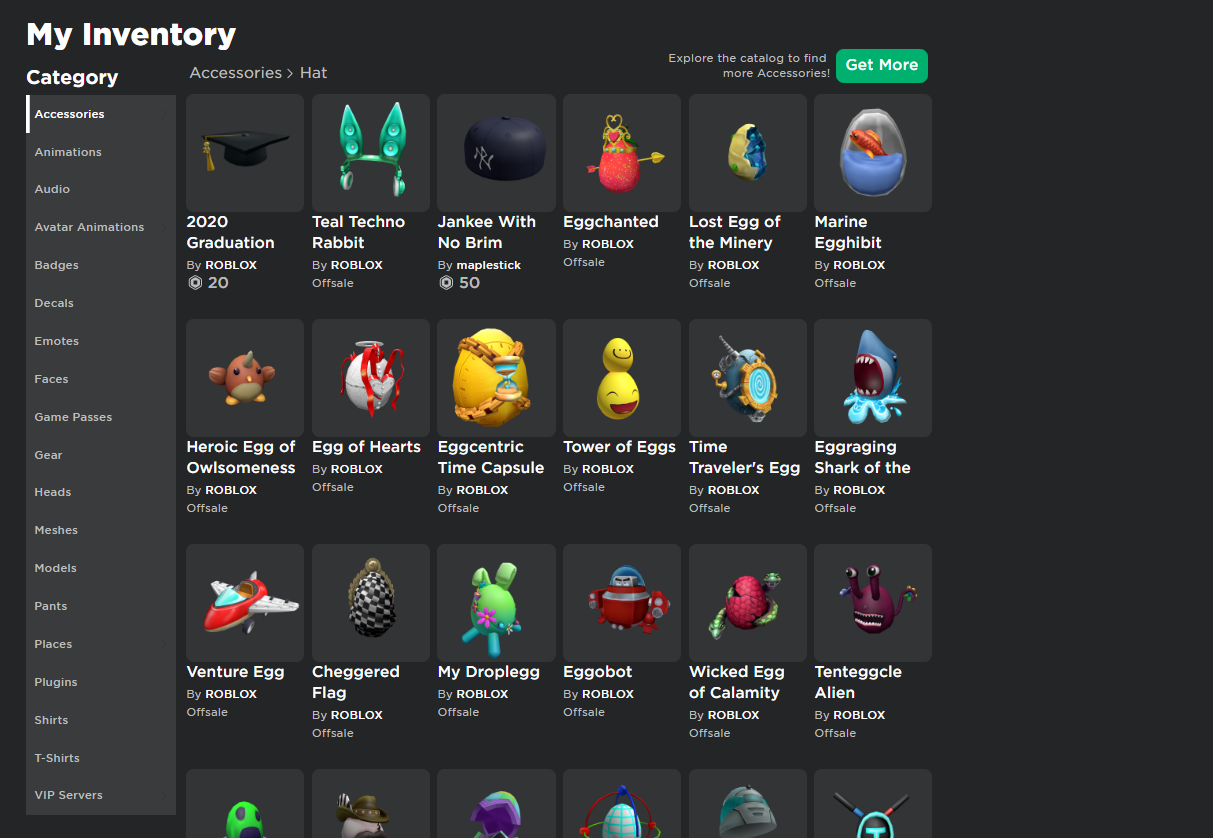
2. Check more than one inventory category
Roblox organizes avatar assets by category and subcategory. An accessory may be under Hat, Hair, Face, Back, or another accessory type; animations, bundles, badges, and clothing are not all displayed in the same place. If the item page says you own it, check its item type rather than assuming it must appear in the first inventory screen.
For a browser, Roblox’s support guide explains how to open Inventory, choose a category, browse pages, and select an item to view its details. On mobile, the category menu may be presented differently.
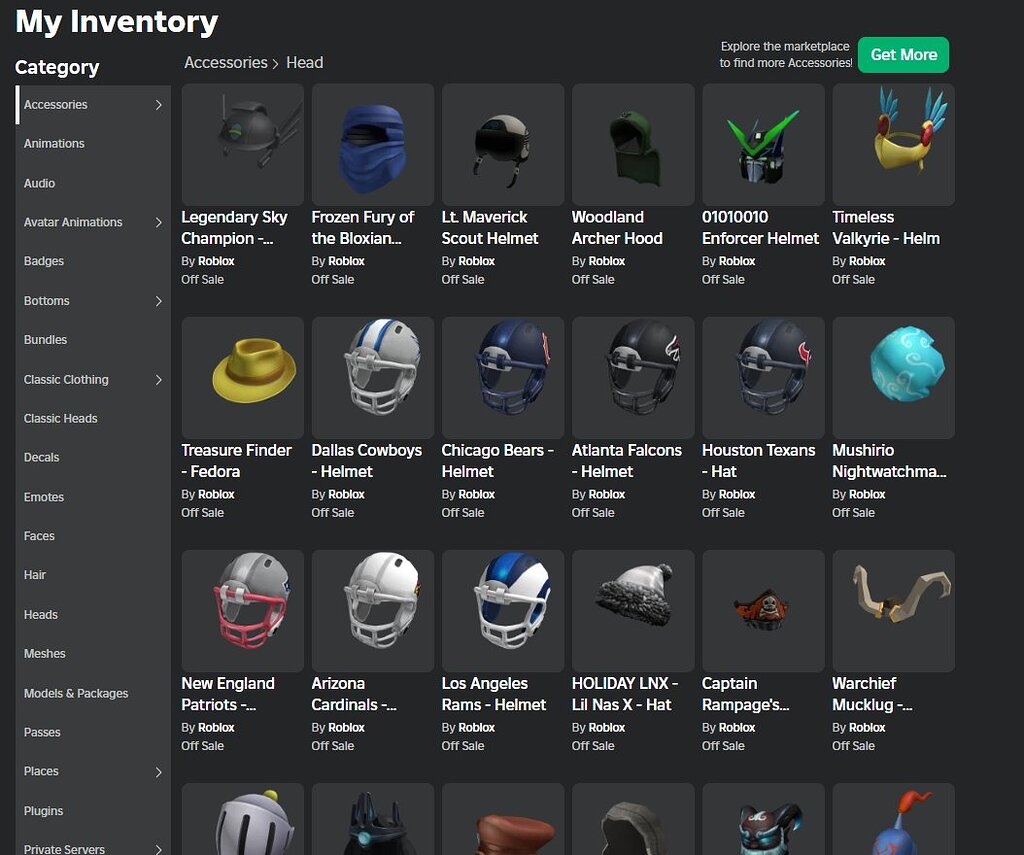
3. Refresh the display without repeating the quest
- Close the inventory or item details panel.
- Reopen Inventory or Avatar/Customize and select the relevant category again.
- If the reward belongs to an experience such as The Hollow, return to the event hub and review the reward card.
- Leave the experience and rejoin once through its official Roblox listing.
- Check the inventory and reward status again before replaying the objective.
Refreshing or rejoining can clear a stale display, but it cannot guarantee that a server-side claim failure will be fixed. Avoid clicking a claim button repeatedly while the interface is processing.
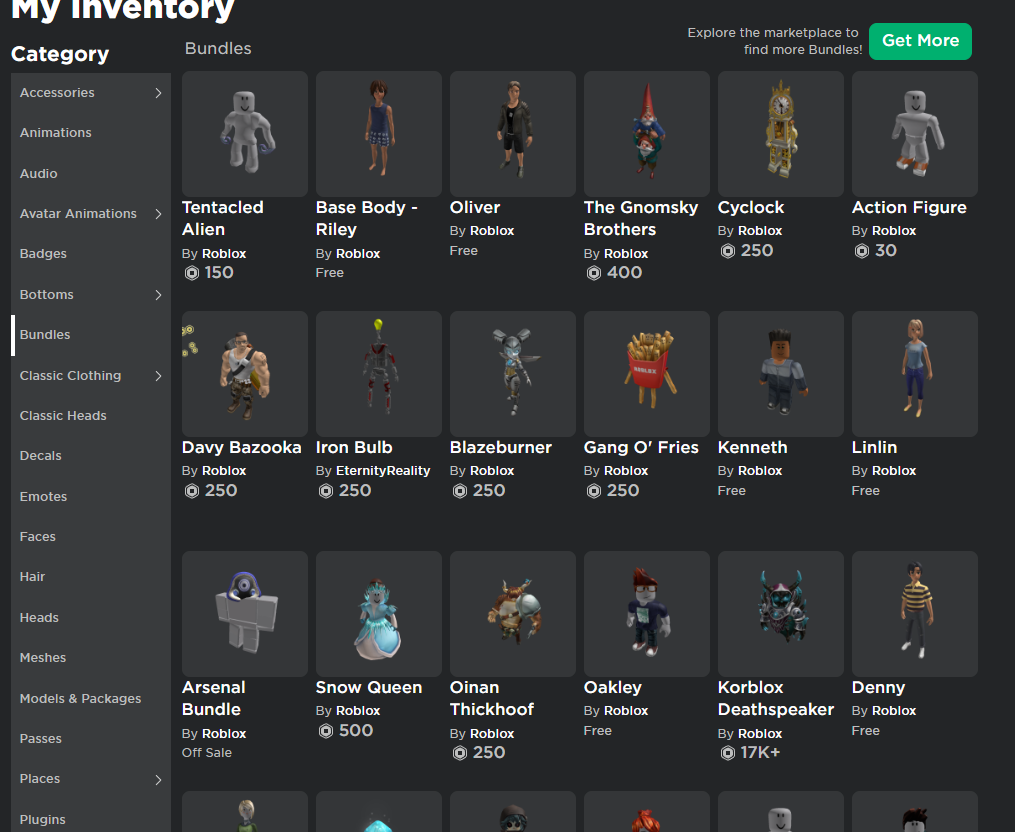
4. Separate avatar items from in-experience rewards
A Marketplace accessory, a badge, a profile benefit, and an item used only inside a particular experience are different kinds of rewards. Roblox’s support page explains that Marketplace purchases can be checked in Inventory, while purchases made inside experiences may need to be checked through the experience or its creator’s instructions.
For The Hollow, use the live event hub to check whether a quest is complete and whether a separate claim action remains. Roblox’s official event announcement describes quests and exclusive UGC rewards, but it does not promise that every reward issue has the same cause or one universal fix.

5. If it is still missing, collect evidence and contact support
Before contacting support, capture the item or reward name, the completed objective, any success message, the relevant badge if there is one, and the approximate time you claimed it. Include the device and experience where the issue occurred. Do not include your password, authentication code, browser cookies, or other account secrets.
Use Roblox Support’s official contact page if the item remains missing. If the issue appears to affect the whole platform, also check Roblox Status. A screenshot of another player’s inventory does not prove that your reward should have been granted.

What to avoid while troubleshooting
- Do not replay a long quest until you have checked the account, requirement, claim state, and inventory category.
- Do not enter your password or verification code into a third-party “inventory repair” or reward-claim site.
- Do not install unofficial scripts or tools promising to force a reward into your account.
- Do not assume a badge automatically grants every related avatar item; follow the event’s stated reward instructions.
- Do not treat community reports as proof that all Roblox players are affected.
Official resources
- Roblox Support: View or hide your inventory in a browser
- Roblox Support: Where is the item I just bought with Robux?
- Roblox Support: View your inventory on mobile
- Roblox Newsroom: The Hollow Halloween event
Frequently asked questions
Why is my Roblox inventory not updating after I claim an item?
Possible explanations include checking the wrong account or category, a stale display, a separate claim requirement, or an issue with the experience’s reward system. Verify the item and reward instructions before repeating the task.
Will refreshing Roblox make a missing item appear?
Refreshing the inventory or rejoining once can help if the display is stale, but it is not a guaranteed fix for a failed grant or server-side issue.
Where do I find a Roblox item I bought with Robux?
Start in Inventory and check the category that matches the item, such as accessories, hair, animations, faces, or packages. Open the item’s details page to confirm whether it is marked as owned.
Does earning a badge always give me the event UGC?
Not necessarily. Read the event’s reward card and check whether a separate claim action is required. If the badge is present but the item is still missing, document the issue and contact support.
Is it safe to use a third-party item recovery website?
Avoid sites asking for your Roblox password, verification code, or session cookie. Use Roblox’s official experience, inventory, and support channels.
Bottom line
Check the account, item category, reward requirements, and claim status first. Refresh the relevant screen and rejoin once only if needed. If the item remains missing, save evidence and contact Roblox Support rather than risking your account or repeating a lengthy quest without knowing whether the first attempt registered.
Image note: The screenshots above are public examples of Roblox inventory interfaces shared in community discussions. They illustrate categories and item listings; they are not screenshots of a specific user’s account or proof of a current event outage.