
By Shivam Das | October 28, 2026
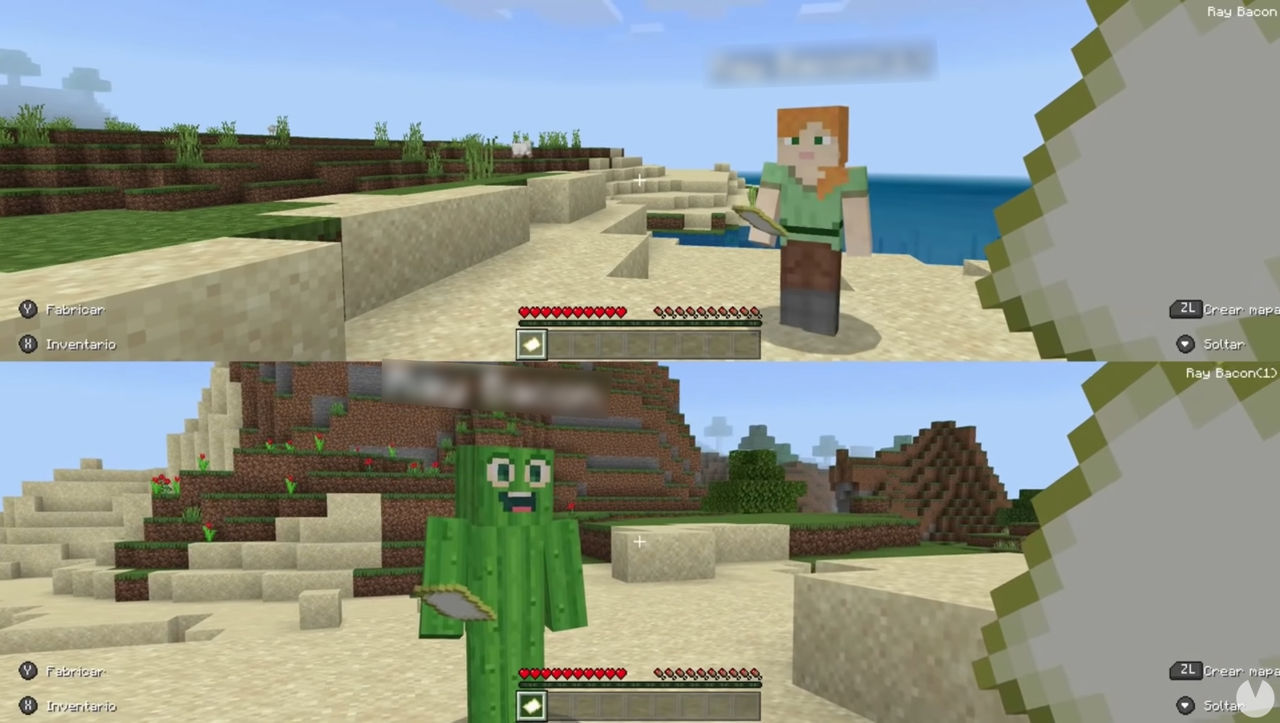
Minecraft on Nintendo Switch 2 is finally here with a native version, couch co-op for up to four players, and the new Vibrant Visuals graphics option. But players asking whether split-screen multiplayer lag is fixed need a careful answer: performance has received attention, but there is not enough official evidence to promise that every split-screen stutter or slowdown is gone. Mojang’s Bedrock 26.60 changelog lists performance and stability improvements, including reduced stutter associated with mobs and items across multiple play sessions and improved stability for network-connected Nintendo Switch systems. A performance improvement is encouraging, but it is not the same as a guarantee that every world, player count, or graphics setting now runs perfectly.
The other important detail: Vibrant Visuals is not available during split-screen gameplay. Nintendo and Minecraft both list split-screen among the situations where the visual upgrade is disabled. If the game switches to a simpler rendering mode when a second local player joins, that is expected behavior—not proof that the graphics setting or console is broken.
Quick answer: what the latest update actually fixes
- Performance work is real: the official Bedrock 26.60 notes list reduced stutter associated with mobs and items across multiple play sessions and improved stability for network-connected Nintendo Switch systems.
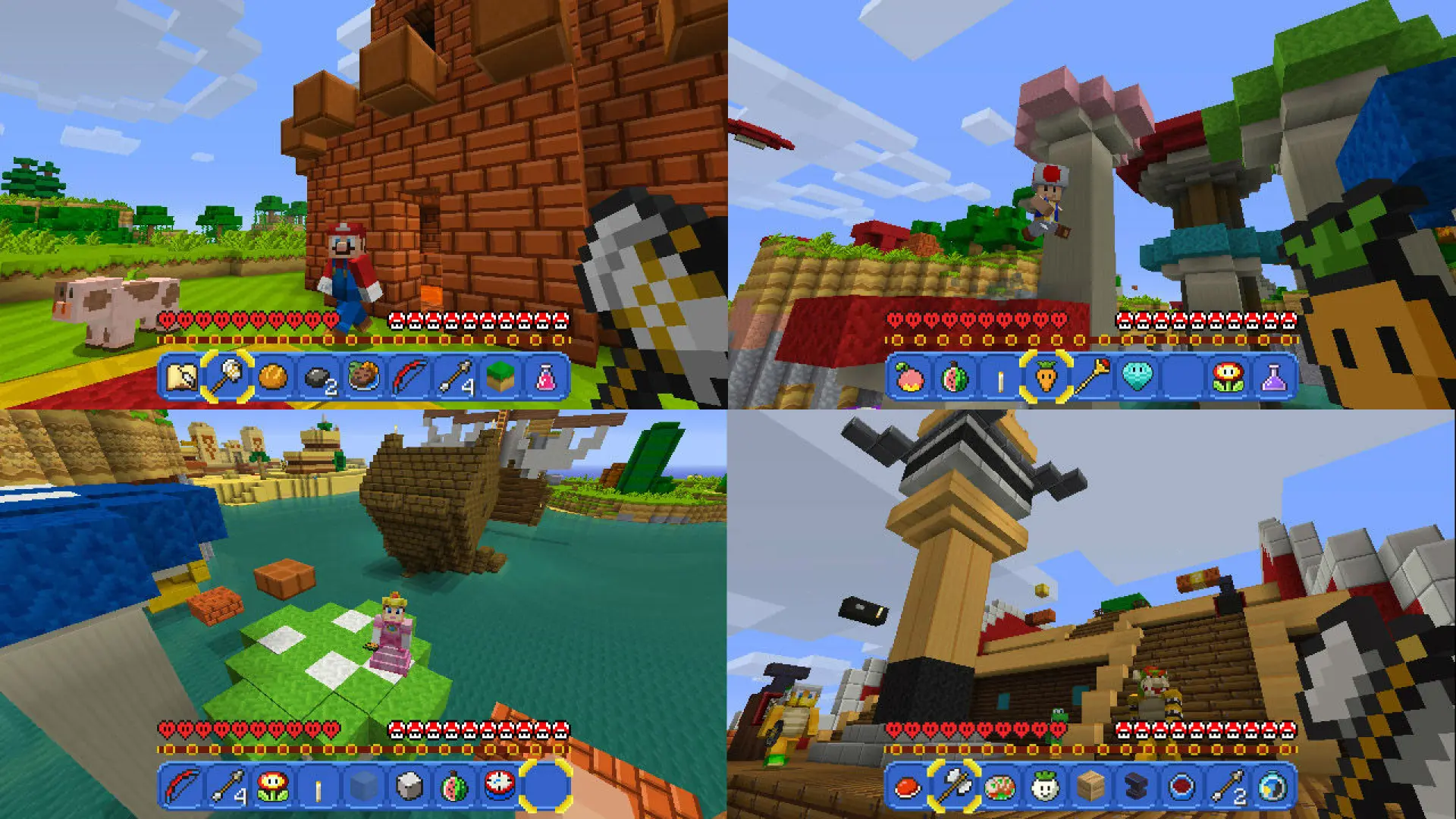
- Split-screen is supported: Nintendo lists single-system play for one to four players on Switch 2.
- Vibrant Visuals turns off in split-screen: this is an official limitation, not a graphics bug.
- A universal lag fix is not confirmed: patch notes do not promise a fixed frame rate or zero stutter in every world. Results can still depend on the world, number of players, entities, effects, and connected packs.
So if your question is “Is split-screen fixed now?”, the most accurate answer is: it has received performance improvements, but don’t assume all lag is gone. Test your own world after updating, especially if the slowdown appears only when a second, third, or fourth player joins.
Official references: Bedrock 26.60 changelog, Minecraft on Nintendo Switch 2, and Nintendo’s Switch 2 game listing.
Why split-screen can feel slower than solo play
Split-screen asks the console to maintain multiple player views at once. Each player can be looking in a different direction, exploring different terrain, triggering different mobs, or loading new chunks. Busy farms, crowded villages, large redstone builds, particle effects, and add-on content can all make a world more demanding than a small test map. That means a world that feels smooth with one player may stutter when more players join—even if the game is fully updated.
It is useful to separate three symptoms that players often call “lag.”
| Symptom | What it usually feels like | First thing to test |
|---|---|---|
| Frame-rate stutter | Movement or camera turns look choppy for one or both players. | Test a new world with fewer entities and effects; compare one player with two. |
| World simulation slowdown | Blocks, mobs, redstone, or interactions respond late even when the picture looks mostly smooth. | Try a simple area away from dense farms, villagers, and redstone machines. |
| Online/network lag | Players rubber-band, fail to join, or see delayed responses in an online world. | Compare local split-screen with online play and restart the console/router if needed. |
These symptoms can overlap, but they do not necessarily have the same cause. If two people are playing on the same console in local split-screen, changing Wi-Fi settings may not solve a frame-rate issue. Conversely, if local play is smooth but an online session is not, focus on the connection, host, and multiplayer service before changing graphics settings.

Seven steps to reduce Switch 2 split-screen lag
1. Install the latest stable game update
Open Minecraft’s software options on the HOME Menu and check for an update. Make sure all players are using the same compatible game version, especially when joining friends online. The official 26.60 changelog documents several stability and performance changes, but console updates can roll out at different times. Check the version shown on your own system instead of assuming every device has received the same build.
2. Restart the console completely
If the game has been suspended and resumed repeatedly, save and exit the world, then restart the console. Nintendo’s Minecraft troubleshooting guidance recommends restarting for lag, long loading times, and crashes. A restart is a quick way to clear a temporary bad state; it will not fix a persistent performance limit in a very demanding world.
3. Compare the same world with one and two players
Use a repeatable test: stand in the same location, look in the same direction, and move around for a minute with one player. Then add a second player without changing anything else. If the slowdown appears immediately when the second view starts, that points toward a split-screen rendering or simulation load rather than a general internet issue.
4. Test a fresh world before changing your main save
Create a temporary world with default settings and no add-ons. Test two-player split-screen near spawn, then try a more demanding area in your usual world. If the fresh world is smooth but the established world stutters, investigate the save’s farms, villagers, entities, redstone, and packs. Keep your original world intact while testing; do not delete a world or remove packs from your main save as a first troubleshooting step.
5. Reduce the workload in crowded areas
For a practical test, move away from large villager halls, animal pens, item-heavy farms, and dense redstone machines. Temporarily simplify the test area and see whether the frame pacing improves. Avoid claiming that any single mob count or simulation-distance number is a guaranteed fix: the game build and world design both matter, and not every console exposes the same settings.
6. Turn off extra content temporarily in a test copy
Resource packs and add-ons can add visual effects, custom entities, or other processing demands. If you suspect a pack, make a copy of the world first and test without optional content there. Do not remove packs from a world you care about until you understand whether the save depends on them.
7. Separate local co-op problems from online multiplayer problems
Local split-screen does not require the same network path as joining a friend’s hosted world. If the issue happens only online, check that the host is online, everyone is updated, multiplayer permissions are enabled, and the connection is stable. Nintendo Switch online multiplayer requires a Nintendo Switch Online membership; cross-platform play also requires a Microsoft Account. For more help, use Minecraft’s official multiplayer troubleshooting guide.

Does Switch 2 split-screen support Vibrant Visuals?
No—not during split-screen gameplay. The Switch 2 version supports Vibrant Visuals in supported gameplay, but official Nintendo and Minecraft store information explicitly says the feature is unavailable in some situations, including split-screen and certain Marketplace worlds or content. That means couch co-op may use the standard rendering path even if solo play looks more dramatic.
This limitation matters because a player might expect the same lighting, shadows, and reflections seen in solo screenshots to remain active with two or more players. If the look changes after a second local player joins, first check the official limitation before treating it as a bug. It is also worth testing the same world in solo mode and split-screen mode separately, since they are not equivalent graphics workloads.
Official details: Minecraft Switch 2 features and Nintendo’s supported play modes.
What if the second player cannot join at all?
That is different from lag. First confirm you are using the current Minecraft version and that the console is in TV or tabletop mode suitable for the intended local setup. Check that a second controller is paired and charged, then follow the on-screen prompt to join with the correct user profile. If the second player is repeatedly removed or the game freezes, restart and test a new world before concluding the issue is fixed or still widespread.
Mojang has previously documented Switch split-screen issues in its public bug tracker, including a report affecting local multiplayer after version 26.30 and a separate issue involving freezes when enabling split-screen. Those reports show that these problems have existed, but an older bug report does not prove the same bug remains in the current build. Check the affected version and resolution status on the individual issue before applying it to your console.
- Mojang issue MCPE-239879: local split-screen stopped working after 26.30
- Mojang issue MCPE-240843: split-screen freeze report
- Nintendo: Minecraft lag, long loading times, and crashing
Frequently asked questions
Is Minecraft Switch 2 split-screen lag fixed in the latest update?
The latest official Bedrock notes list performance and stability improvements, but they do not guarantee that every split-screen lag issue is fixed in every world. Test your own game after updating.
How many players can play split-screen on Switch 2?
Nintendo lists single-system play for one to four players. Actual performance can vary with the world and activity, so test with the number of players you plan to use.
Why does Vibrant Visuals turn off when a second player joins?
Split-screen is one of the officially listed situations where Vibrant Visuals is unavailable. The visual change is expected behavior, not necessarily a bug.
Will better Wi-Fi fix local split-screen frame drops?
Not usually if the issue happens in local play on one console. Wi-Fi troubleshooting is more relevant when the problem is joining an online world, rubber-banding, or delayed network responses.
Should I delete my world or reinstall Minecraft?
No—not as the first step. Restart, update, compare a fresh test world, and test optional packs in a copy. Back up important worlds before any major troubleshooting.
What is the fastest test to tell whether my world is too demanding?
Compare the same area with one player and two, then repeat in a fresh world with default settings. If only the established world stutters, investigate its entities, farms, redstone, and add-ons.
Bottom line
Switch 2 split-screen performance has received attention in recent Minecraft updates, so updating is worthwhile. But “improved” does not mean “perfectly fixed.” Start with a restart and the latest stable build, compare one-player and two-player performance in the same location, and use a clean test world to isolate demanding saves or optional content. Remember that Vibrant Visuals being unavailable in split-screen is an official limitation. If a reproducible problem persists after these checks, record your game version, player count, world type, and exact symptom before reporting it through official support channels.
Sources
- Minecraft Bedrock Edition 26.60 Changelog
- Minecraft on Nintendo Switch 2 — official feature details
- Nintendo Switch 2 listing — supported play modes and Vibrant Visuals caveat
- Nintendo Support: Minecraft troubleshooting
- Minecraft Help: multiplayer troubleshooting
Editorial note: This guide separates documented patch notes from player-specific performance reports. It does not claim independent frame-rate testing, and behavior may differ between the original Switch, Switch 2, stable releases, and Preview builds.