
By Shivam Das | Updated October 28, 2026
Minecraft’s native Nintendo Switch 2 edition arrived on October 27, 2026, bringing the Bedrock 26.60 update and support for Vibrant Visuals. That makes this a good time to revisit controller settings—especially if aiming feels too twitchy, camera turns overshoot, or building precise shapes is harder than it should be. The best setup is not one magic sensitivity number: it is a comfortable starting point that you fine-tune for your screen, controller, and play style.
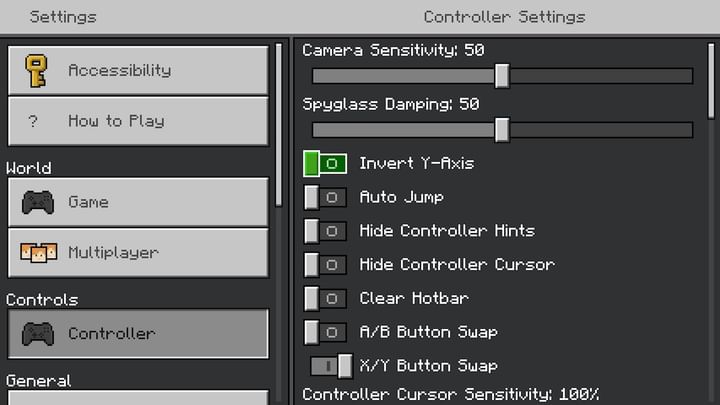
Quick answer: Start with Camera Sensitivity around 40–50%, keep Invert Y-Axis off unless you prefer inverted aiming, turn Auto Jump off for more deliberate movement, and leave button mappings at default until you know which action is slowing you down. If your menus show a Spyglass Damping slider, begin near its default and adjust only after testing. These are practical starting points, not official Mojang presets; available options can vary by build.
What changed with Minecraft on Switch 2?
Mojang announced that Minecraft is available on Nintendo Switch 2 with support for Vibrant Visuals, and the Bedrock 26.60 changelog dated October 27, 2026 lists Switch 2 availability among the gameplay updates. The release also includes a large collection of bug fixes and improvements. That is useful context, but it does not mean every control slider was redesigned or that one sensitivity value is officially recommended for the new hardware.
Vibrant Visuals changes lighting, shadows, and the overall look of the world. It can make the game feel visually different, but graphics settings and controller sensitivity solve different problems. If the camera feels hard to control, tune the controls first; if the game feels visually busy or performance varies, review graphics options separately.
For official details, read the Nintendo Switch 2 launch announcement and the Minecraft Bedrock 26.60 changelog.
Recommended starting settings
Use this table as a baseline. Slider scales and labels can differ between builds, so match the setting name you actually see in your game instead of assuming every menu is identical.
| Setting | Suggested starting point | Why it helps |
|---|---|---|
| Camera Sensitivity | 40–50% | Balances turning speed with block-placement precision. Lower it if you overshoot; raise it gradually if turning feels sluggish. |
| Spyglass Damping | Start at the current default | Adjust only if zoomed-in aiming feels too abrupt or too slow. Test it separately from normal camera sensitivity. |
| Invert Y-Axis | Off for most new players | Turn it on only if you naturally expect pushing the stick up to look down. |
| Auto Jump | Off for precise building and combat | Reduces unexpected hops near ledges, doors, and narrow bridges. Turn it back on if you prefer hands-free jumping over small blocks. |
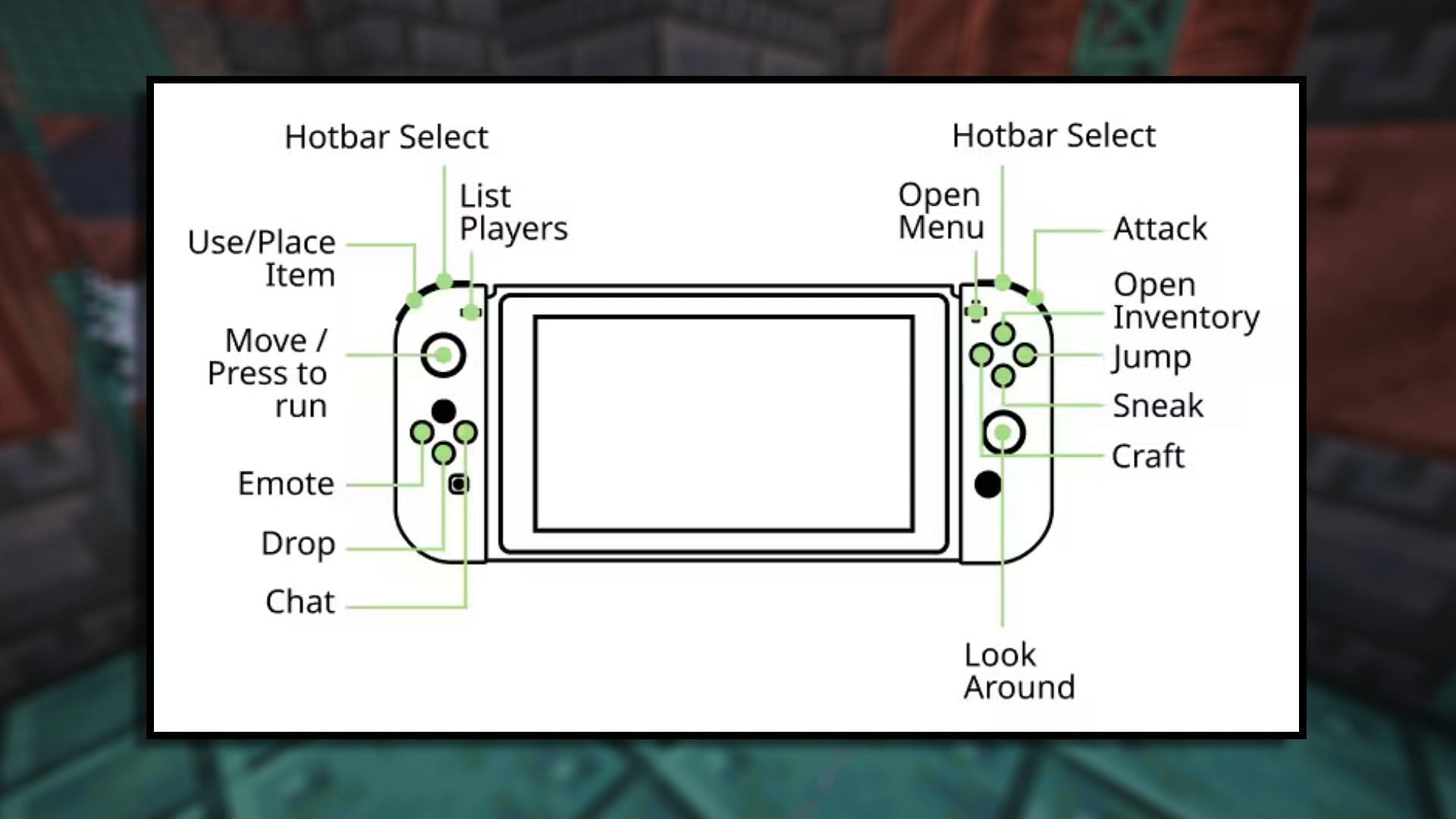
| Button mapping | Default at first | Learn the standard layout before remapping. Change only the actions that repeatedly interrupt your play. |
| Controller vibration | Personal preference | Keep it on for feedback or turn it off if vibration is distracting. If the game exposes only an on/off option, do not expect a fine-grained intensity slider. |
These values are editorial recommendations for a first test, not official Nintendo or Mojang settings. Make one change at a time and keep the setting that improves your own control.
How to tune camera sensitivity without guessing
- Load a low-risk world. Choose a familiar area with flat ground, a few blocks to place, and no immediate combat. Avoid testing in a dangerous cave or over a cliff.
- Pick a target. Aim at the corner of a block, then turn away and return to it several times. If the crosshair repeatedly flies past the corner, reduce sensitivity by a small step.
- Check a full turn. Rotate to look behind you. If it takes too many movements, increase sensitivity a little. Do not jump from a low setting to maximum in one adjustment.
- Place a short row of blocks. Build a straight line and then a small wall. This reveals whether you can make controlled micro-adjustments, not just fast turns.
- Test combat separately. Track a moving mob from a safe distance. A setting that feels excellent for building may feel slow in combat, so choose a compromise that fits your most common activity.
Make one adjustment, repeat the same test, and give your hands a few minutes to adapt. Constantly changing several sliders at once makes it difficult to tell which change helped.
Best setup for building, survival, and PvP
For builders
Start at the lower end of the sensitivity range, around 35–45%, if you often misplace stairs, slabs, signs, or redstone components. Turn Auto Jump off if it causes you to hop while approaching a ledge or lining up a block. Keep the default button layout until you have a specific reason to change it; consistency helps when placing dozens of blocks in a row.
For Survival exploration
A middle setting around 40–50% is a sensible starting point. You want to look around quickly enough to notice mobs, but not so quickly that the camera swings past a doorway or a narrow path. If you use a spyglass and the menu offers Spyglass Damping, adjust it separately after your normal camera movement feels comfortable.
For combat and multiplayer
Try 50–60% if you need faster turns to track nearby opponents, then reduce it if aiming becomes inconsistent. A higher sensitivity is not automatically better: missing a hit because you overshot the target can be worse than taking an extra fraction of a second to turn. Test in a practice world before using a new setup on a competitive server.
Can Switch 2 system settings fix stick drift or sluggish aiming?
Sometimes the issue is not your Minecraft sensitivity. Nintendo’s support guide recommends calibrating the control sticks if movement does not match your input. On Switch 2, open System Settings → Controllers & Accessories → Calibrate Control Sticks, then follow the on-screen instructions. Make sure the console is updated first. Calibration can help diagnose input problems, but it does not add an in-game dead-zone slider if Minecraft does not expose one.
Switch 2 also provides controller and accessibility options, including supported button remapping. Those system-level changes are separate from Minecraft’s own settings. If you remap a button at the console level, remember that it may affect other games too; reset or switch presets if the new layout becomes confusing.
Official help: How to calibrate controllers on Nintendo Switch 2 and Nintendo Switch 2 accessibility and button-mapping options.
Button mapping: change less, practice more
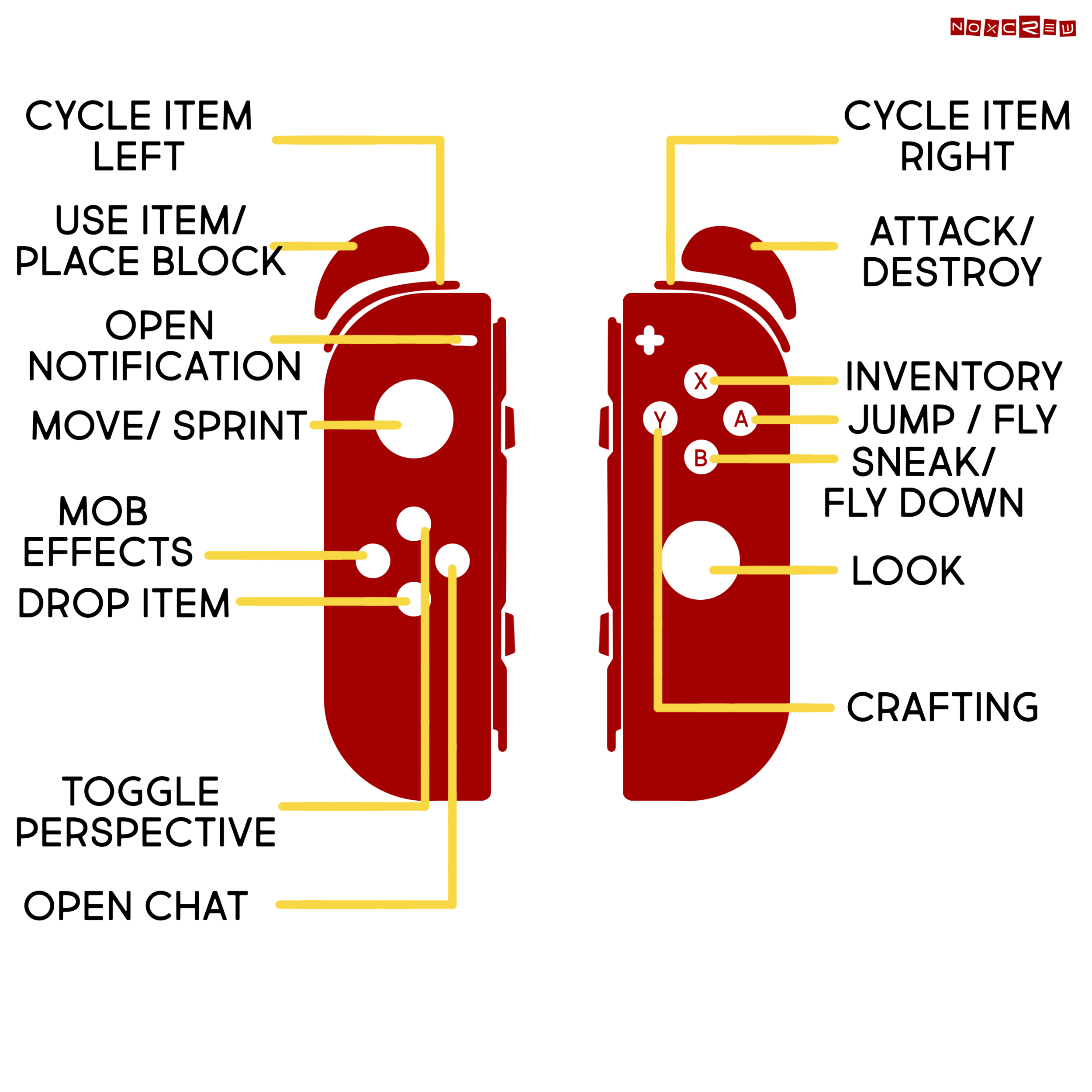
Remapping can help if a particular action is awkward to reach, but changing several buttons at once creates a new learning curve. Start with the default layout and identify one repeated pain point—for example, accidentally dropping items or struggling to reach sneak. Change only that assignment, play for a session, and keep it only if it feels more natural.
Minecraft’s official controls guide explains the broad controller scheme and notes that controls can be customized through the options menu. Nintendo’s Switch 2 support pages explain how to remap supported buttons at the system level. Use the in-game mapping when the action is available there; use system-level mapping when you need a console-wide change.
Control reference: Minecraft’s official controls guide.
Quick troubleshooting checklist
- Camera too fast: Lower Camera Sensitivity by 5–10 percentage points, then repeat the same aiming test.
- Camera too slow: Raise sensitivity a little and test a full turn before increasing it again.
- Character moves when you do not touch the stick: Check stick calibration and test the controller in the console’s input tools. Sensitivity is not a substitute for fixing a hardware input issue.
- Jumping at the wrong time: Try turning Auto Jump off in Minecraft’s controller settings, if the option is available.
- New update feels different: Confirm the game version, check that your preferred settings were retained, and retest in a familiar world.
- Vibrant Visuals looks busy: Review graphics options independently from controls. Lowering camera sensitivity will not change lighting or rendering performance.
Frequently asked questions
What is the best camera sensitivity for Minecraft on Switch 2?
Try 40–50% as a starting point. Lower values can help with precise building; higher values may suit faster combat. It is a recommendation to test, not an official preset.
Did the Switch 2 update change all controller settings?
The official Minecraft announcement and Bedrock 26.60 changelog confirm Switch 2 availability and Vibrant Visuals support, but they do not say that every controller setting was redesigned. Check the menu in your current build.
Should I turn Auto Jump off?
For precise building, narrow paths, and combat, off is often easier to control. Players who prefer automatic movement over small blocks may like it on.
Can I change the controller dead zone on Switch 2?
Do not assume a dead-zone slider exists in Minecraft’s Switch 2 menu. First calibrate the control sticks through Nintendo’s system settings. If the problem remains, test another supported controller if available.
Should I use Joy-Con 2 or the Switch 2 Pro Controller?
Choose the controller that feels comfortable and gives you consistent stick movement. A different controller may feel better in your hands, but it is not a guaranteed fix for an in-game sensitivity or dead-zone limitation.
Will these settings work on the original Switch?
The general tuning method also applies to Minecraft on the original Switch, but Switch 2’s native release and graphics support are specific to the newer console. Menu labels and available options may vary by version.
Sources and further reading
- Minecraft: Play Minecraft on Nintendo Switch 2 today
- Minecraft Bedrock Edition 26.60 changelog
- Minecraft official controller and controls guide
- Nintendo Switch 2: calibrate control sticks
- Nintendo Switch 2: accessibility and button mapping
Editorial note: This guide combines official release information with practical tuning recommendations. Sensitivity values are starting points, not official Mojang settings. Always verify the options shown in your current game version.