Quick answer: If Roblox The Hollow stutters on an older phone, tablet, or budget PC, switch Graphics Mode to Manual, lower Graphics Quality, close demanding background apps, and check whether the issue is graphics lag or network lag. These official troubleshooting steps can help, but no setting guarantees smooth performance on every device or experience.
Roblox’s official announcement says The Hollow opens October 22, 2026, at 2 p.m. Pacific Time. For U.S. players, testing your settings before the event is smarter than troubleshooting in a busy launch session.
1. Lower graphics quality first
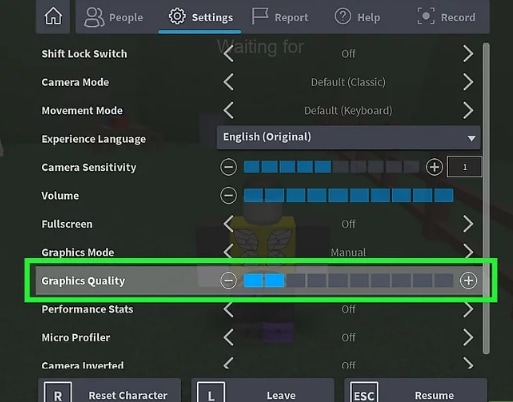
Enter a Roblox experience, open the in-game menu, and select Settings. Change Graphics Mode to Manual, then move Graphics Quality toward the low end. Test the experience for a few minutes. Raise the slider gradually only if movement remains smooth.
Roblox says lower graphics settings reduce visual detail and can help less powerful devices. The trade-off is fewer visual effects and less detail, but responsive movement is more useful than decorative effects when navigating a maze.
Official guide: Roblox Support: Graphics Quality.
2. Identify the kind of lag you have
Not every slowdown comes from weak hardware. Roblox distinguishes graphics lag—choppy visuals or low frame rates—from network lag, where players appear to jump around or actions take unusually long to register.
- Graphics lag: the image stutters, freezes, or feels choppy, especially in busy scenes.
- Network lag: other players warp, actions register late, or movement feels delayed even when the picture looks smooth.
- Possible device overload: performance worsens after the phone or laptop gets hot or several demanding apps remain open.
If it looks like network lag, test a reliable Wi-Fi connection, move closer to the router, and pause large downloads or streaming on the same network. Repeatedly lowering graphics will not repair an unstable connection.

3. Low-end mobile: reduce heat and background load
On a budget Android phone or older iPhone, close apps you do not need before joining. Pause background downloads, avoid playing while the phone is already hot, and take a short break if performance drops after a long session. Heat can cause a phone to reduce processing speed to protect itself.
Keep Roblox and your operating system updated through official app-store or system-update channels. Avoid unofficial “FPS booster” apps, modified clients, and downloads promising free rewards; they are not needed for these settings changes and can put your account or device at risk.
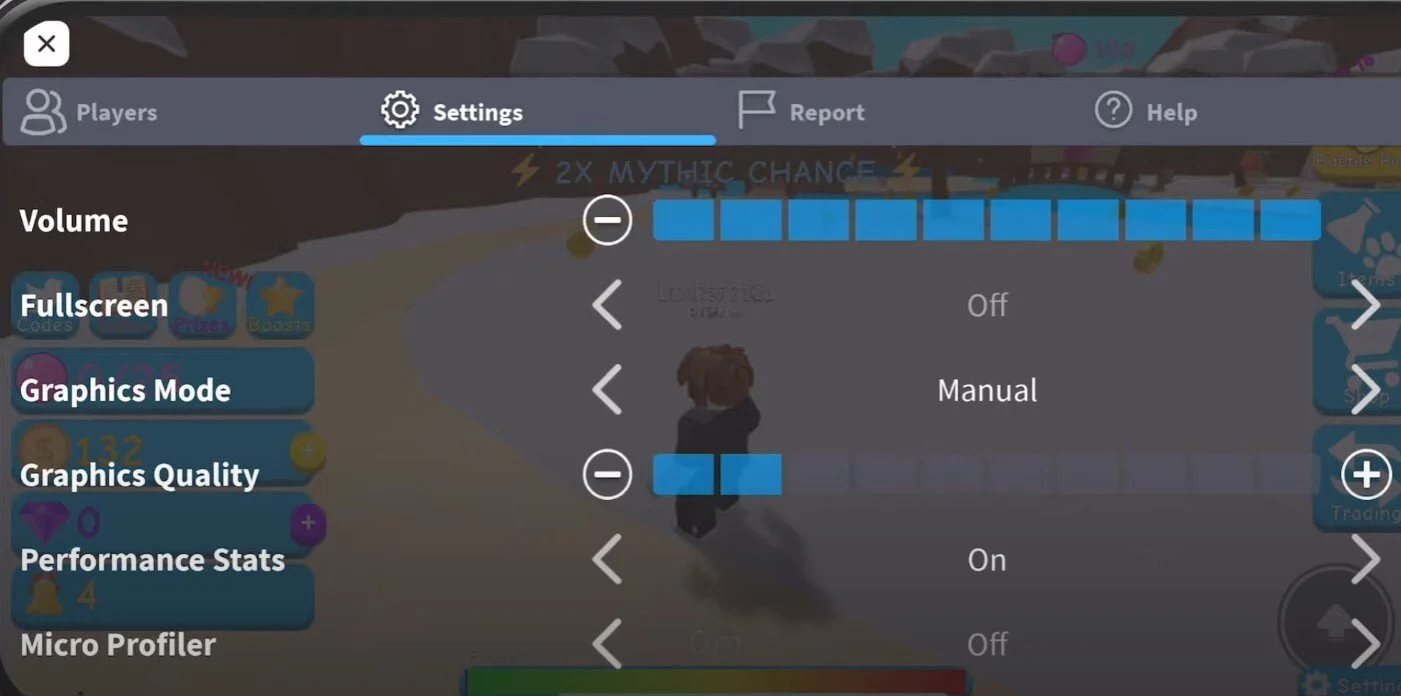
4. Budget PC or laptop: keep troubleshooting simple
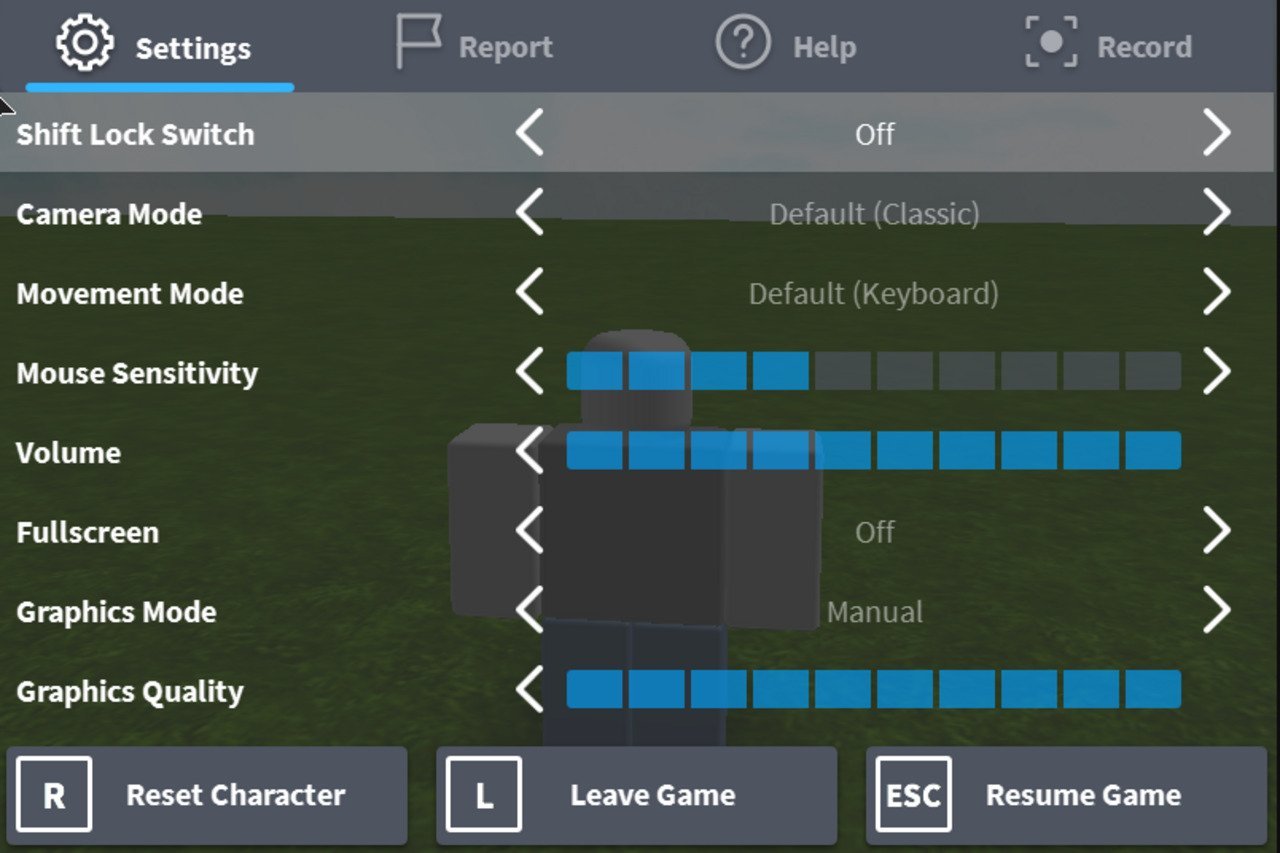
On Windows, begin with Roblox’s built-in Graphics Mode and Graphics Quality controls. Close demanding browser tabs, screen recorders, launchers, and other programs you are not using. If problems continue, check Roblox’s current system requirements and update graphics drivers through your computer or graphics-card manufacturer.
Do not assume every lag problem requires new hardware. Compare performance with low graphics, fewer background apps, and a stable connection. If only one experience runs poorly while others work normally, the cause may be specific to that experience or its server load.

5. Find a stable setting instead of chasing a magic FPS number
There is no single Graphics Quality value that works best on every phone or PC. Start low, test movement, and raise the slider one step at a time. If stuttering returns, go back to the last comfortable setting. Network quality, memory, heat, hardware, and the experience itself can all affect results.
More detail: Roblox Creator Hub performance optimization explains why frame rate, memory, and join times matter to a smooth experience.
Before The Hollow opens: a quick checklist
- Test Manual Graphics Mode and a low quality setting in a Roblox experience.
- Close background apps and distinguish graphics lag from network lag.
- Install Roblox updates from official sources only.
- Bookmark our Roblox The Hollow U.S. time-zone guide and check the Vervado Roblox blog for related coverage.
- Follow the live event’s in-game instructions; do not assume a reward or setting is confirmed until Roblox shows it.
Official The Hollow announcement
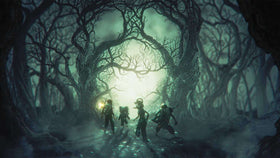
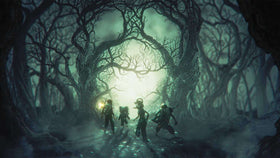
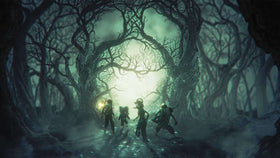
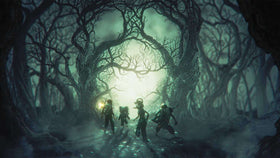
Roblox’s announcement says The Hollow begins October 22, 2026, at 2 p.m. Pacific Time, features a different monster over nine nights, and has a live finale on October 31. This embedded post is the original announcement—not a performance tutorial.
you’ve met them before. but not like this. 10.22.26
— Roblox (@Roblox) October 10, 2026
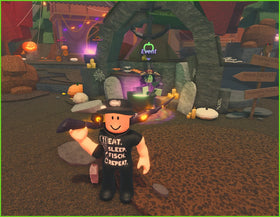
Sources: Roblox Support’s lag guide, Graphics Quality instructions, and the official The Hollow announcement. Images are relevant Roblox settings/gameplay examples from the credited sources, not verified screenshots from The Hollow itself.
Frequently asked questions
What settings should I use for Roblox The Hollow on a low-end phone?
Set Graphics Mode to Manual and lower Graphics Quality. Close demanding background apps and let a hot phone cool. Test before the event because results vary by device.
Will lowering graphics fix every kind of Roblox lag?
No. It can help graphics lag, but not an unstable internet connection or a problem specific to an experience or server.
Should I install an FPS booster?
Start with Roblox’s built-in settings and normal device maintenance. Avoid unofficial clients, downloads, or tools asking for your Roblox login or promising free rewards.
When does Roblox The Hollow start?
Roblox’s official announcement lists October 22, 2026, at 2 p.m. Pacific Time. Check the official event experience for updates.
Are these images screenshots from The Hollow?
No. They are relevant Roblox settings or gameplay examples used to explain performance controls, and are not presented as verified The Hollow gameplay screenshots.
By Shivam Das · Updated October 21, 2026 · U.S. audience guide