Quick answer: If Roblox The Hollow’s Night 5 chase stutters on your phone, start by lowering graphics, closing background apps, and testing your connection separately. These steps may reduce device-related lag, but no phone setting can guarantee lower ping or fix a server-side problem. Roblox Support distinguishes network lag from graphics lag and recommends lowering graphics quality when visuals stutter. Read the official Roblox lag guide.
Updated October 26, 2026 · For U.S. players · By Shivam Das
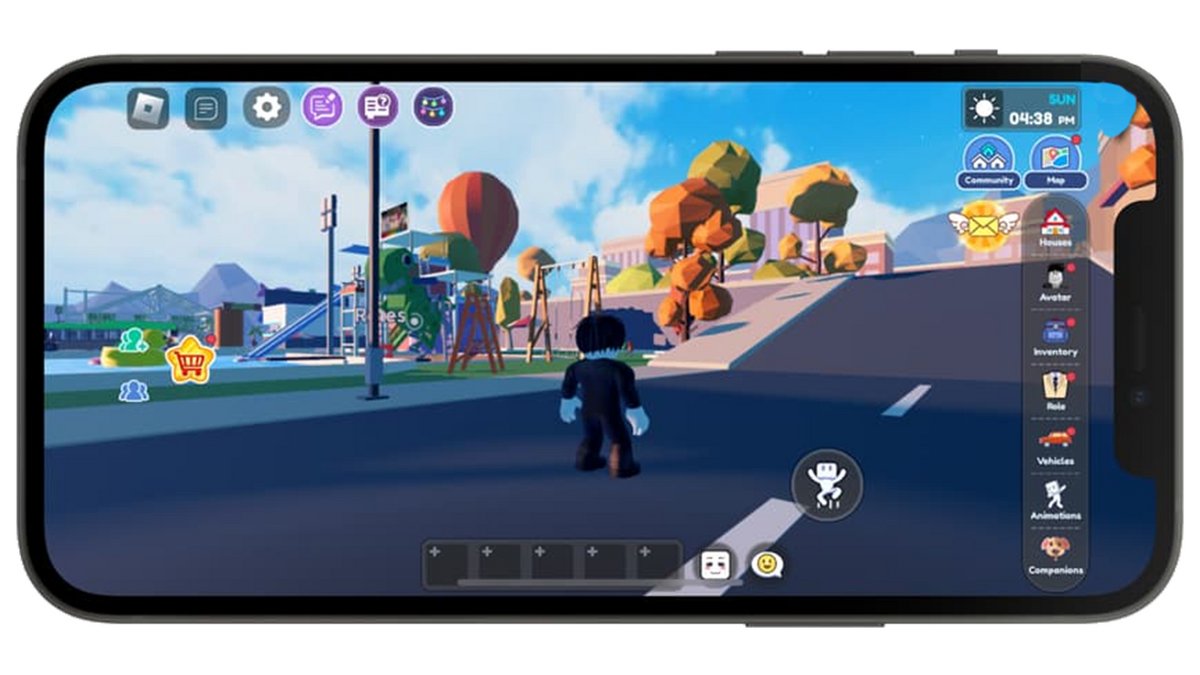
Identify the type of lag first
- Graphics stutter: the camera or scene hitches, animations look choppy, or the phone heats up. Lower graphics and reduce device workload.
- Network lag or high ping: your character rubber-bands or interactions respond late. Check Wi-Fi/mobile data and test another Roblox experience.
- Loading or a frozen session: one server may be unresponsive. Rejoin once and compare; repeatedly reconnecting without testing anything wastes time.
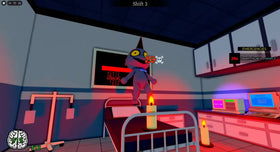
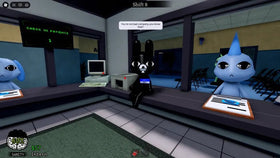
Roblox’s official announcement describes The Hollow as a nine-day, platform-wide survival event with a new monster each day, quests, and rewards. It does not publish a guaranteed “best phone setting” or promise that Night 5 latency can be fixed locally. Read the official event details.
Best mobile settings to test before Night 5
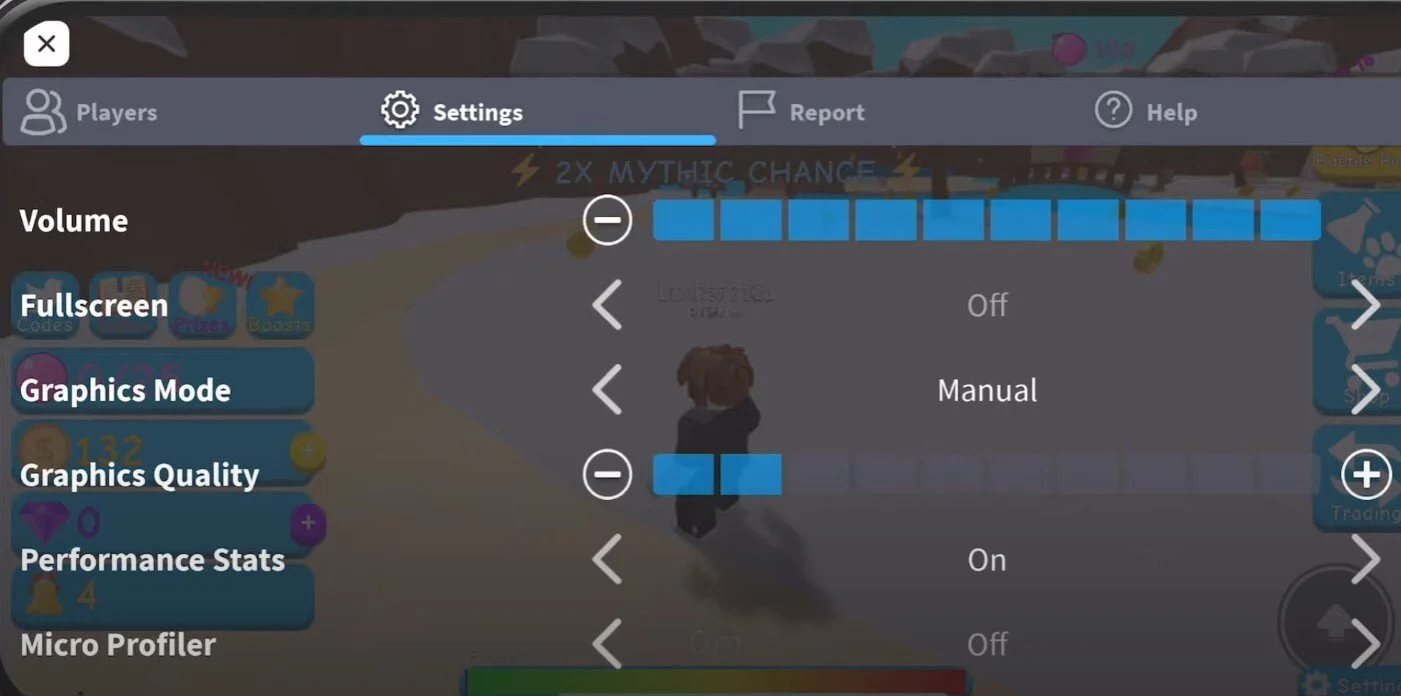
1. Set graphics to Manual and start low
Open The Hollow, tap the in-experience menu, and open Settings. If your mobile version offers Graphics Mode, switch Auto to Manual and lower Graphics Quality. Try a low setting first (around 1–3 bars if your interface uses bars), test a short run, and raise it only if the game stays smooth. This is a practical starting point, not a universal official preset; menu labels can vary by device and app version.
2. Reduce background workload
Close apps you are not using, especially games, screen recorders, video editors, and apps downloading large files. If your phone is hot, let it cool before a difficult chase. These steps can reduce device workload; they cannot repair a remote server or an unstable internet route.
3. Test the connection instead of guessing
Pause cloud backups and large downloads. On Wi-Fi, move closer to the router and try a less congested network if available. On cellular data, compare against stable Wi-Fi. Then test another Roblox experience. If several experiences show delayed actions, your connection or a wider platform issue may be involved; if only The Hollow is affected, the particular experience or server instance may be part of it.

4. Keep storage free and update Roblox
Check that your phone has free storage, install available Roblox app updates from the official app store, and restart the app if it has been running for a long session. On older phones, lower graphics before trying cosmetic tweaks. Avoid third-party “ping booster” apps that ask for account access or promise impossible server fixes.
5. Follow a short pre-run routine
- Restart Roblox if it has become unresponsive.
- Set graphics low enough for consistent movement.
- Close background apps and pause large downloads.
- Test movement for 30–60 seconds before a difficult section.
- If actions still respond late, leave once, rejoin, and compare. Avoid repeated reconnects without learning from the result.
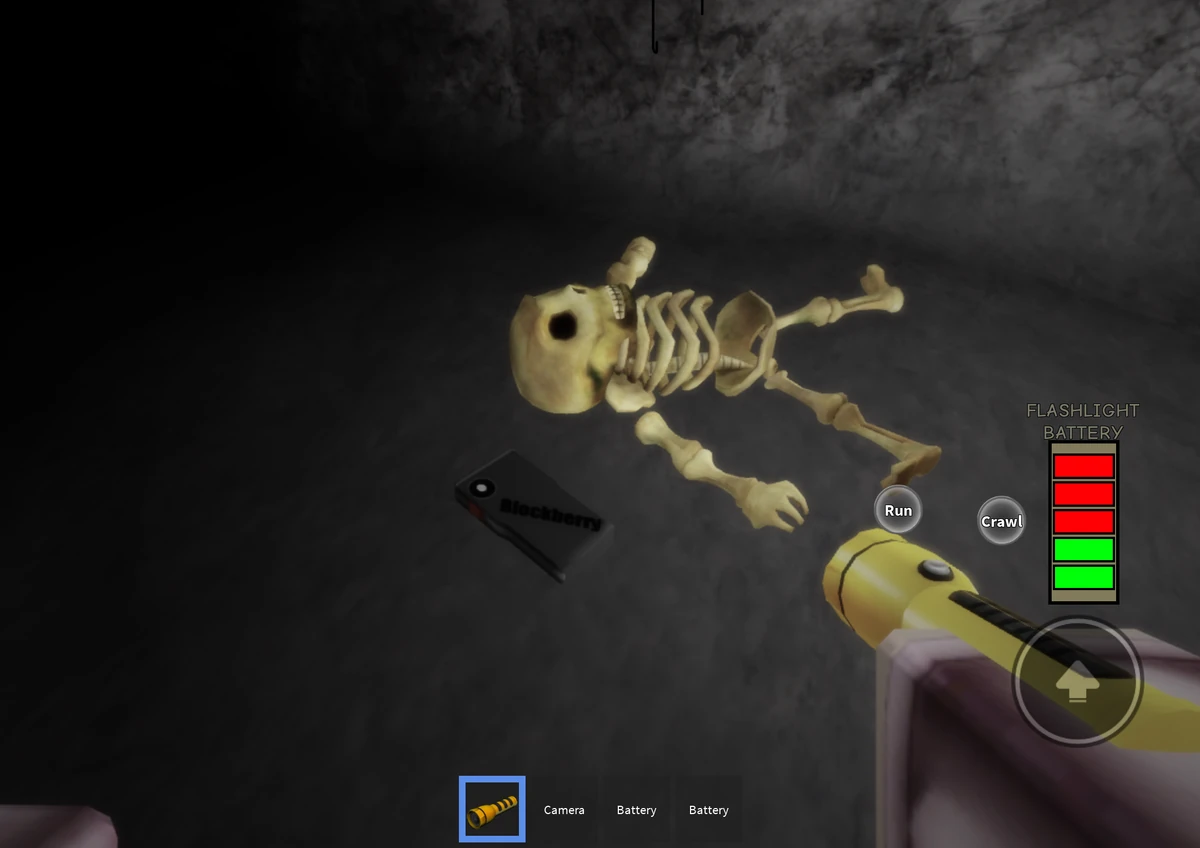
Touch-control tips for Hiachi chases
Performance is only half the challenge. On a phone, camera movement and the movement stick can compete for thumb space.
- Use smaller camera swipes. Fast repeated turns can obscure the route.
- Do not sprint blindly around corners. Controlled turns can be more useful than rushing into a dead end.
- Keep the screen clear. Close chat or overlays if they cover controls, and avoid switching apps mid-run.
- Choose a consistent grip. Check that your thumbs do not cover important controls before the chase starts.
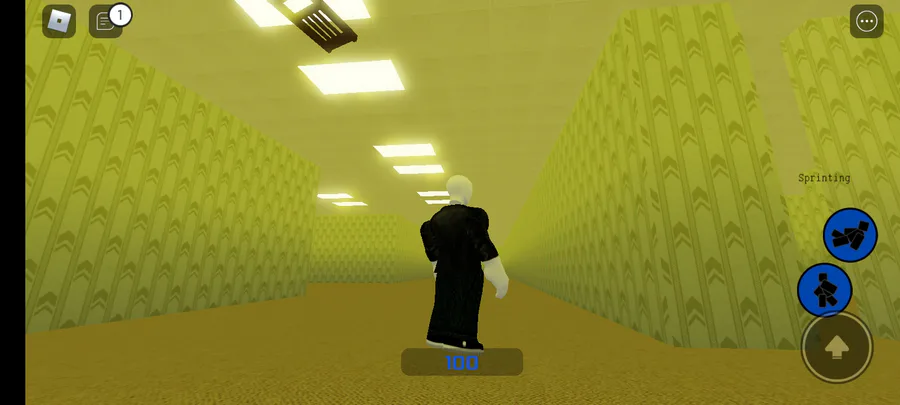
How to tell whether a fix worked
Change one thing at a time. If lowering graphics makes movement smoother but interactions still respond late, you improved rendering without solving the connection issue. If the phone remains smooth but one session freezes, a graphics setting is unlikely to be the full answer.
For related advice, read our Roblox mobile lag troubleshooting guide for Hiachi chases, or browse the Roblox blog.

Frequently asked questions
What is the best Roblox graphics setting for Night 5 on mobile?
There is no single best setting for every phone. Start with Manual graphics and a low quality level, then raise it only if movement remains smooth.
Can graphics settings reduce ping?
No. Lower graphics can help rendering stutter, but ping is a network-latency issue. Check your connection and compare another experience if actions still respond late.
Should I use a third-party ping booster?
No app can guarantee lower Roblox server latency. Avoid tools that ask for your password, session cookies, or recovery information.
How can I tell if Roblox is down?
Check the official Roblox Status page. A green status does not guarantee every experience or server instance is problem-free.
Where can I report a persistent Night 5 problem?
Use Roblox Support. Include your device model, approximate time, experience, steps tried, and any error message. Never include your password or recovery codes.